Custom Form Overwritten?

DrMopp

Senior Member
Outlook version
Outlook 365 64 bit
Email Account
Office 365 Exchange
Operating system::    Windows 11 Pro
Outlook version:     Desktop App V2510
Email type or host:    Microsoft 365

I have a number of appointment records created with the message class IPM.Appointment.Booking. The IPM.Appointment.Booking custom form existed in my Personal Forms folder and still does, except it has reverted to the standard IPM.Appointment form. Can't think of any way this could have happened other than if had loaded the standard form in Forms Designer and then published it as the custom form, which I'm certain didn't happen. Is there any way to recover the 'lost' custom form, or do I have to start again?
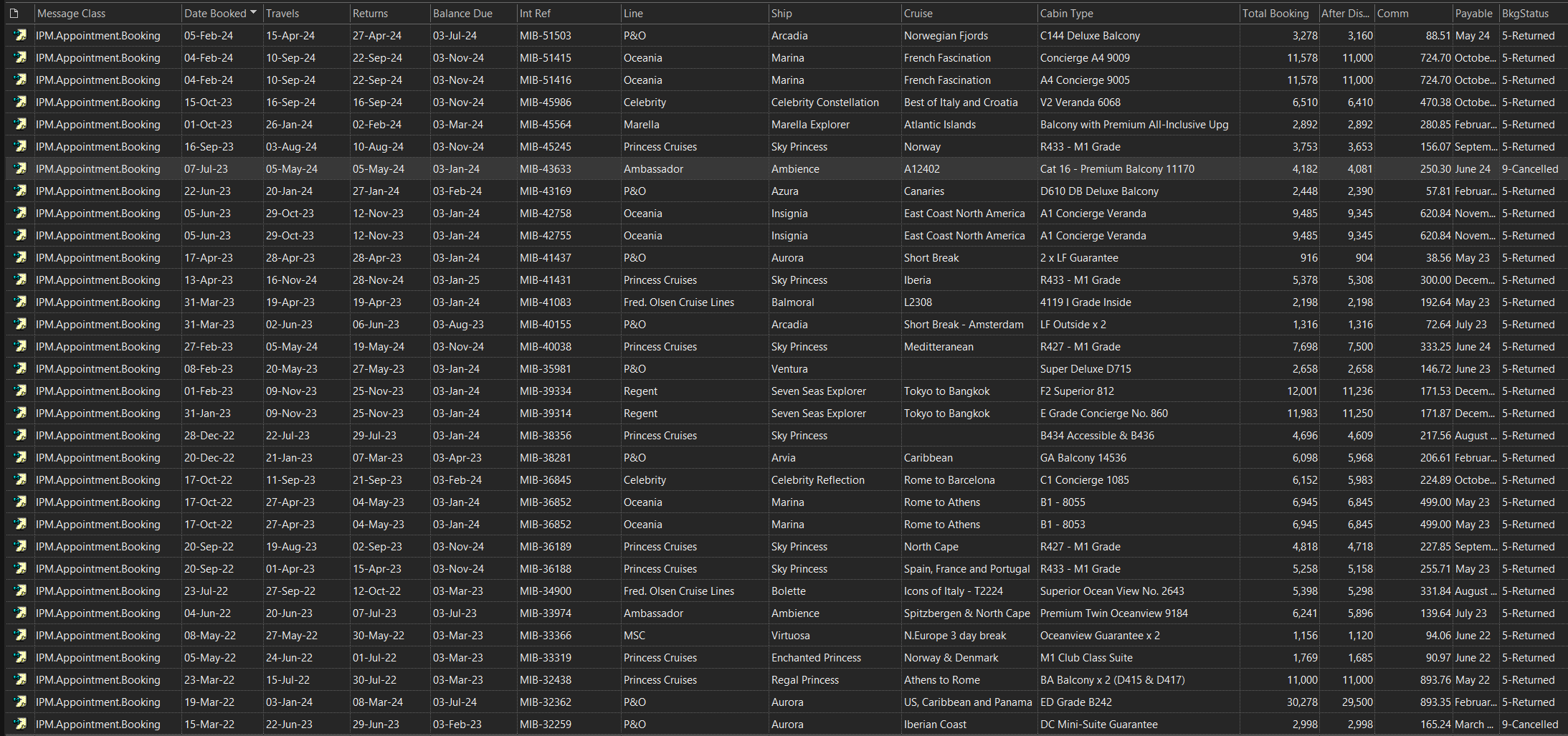
 
OK earlier posts may have been a little less than accurate, to summarise:-.
A subset of 'Calendar' Records created using a customised appointments form - 'IPM.Appointment.Booking' - are shown in the attached screenshot:
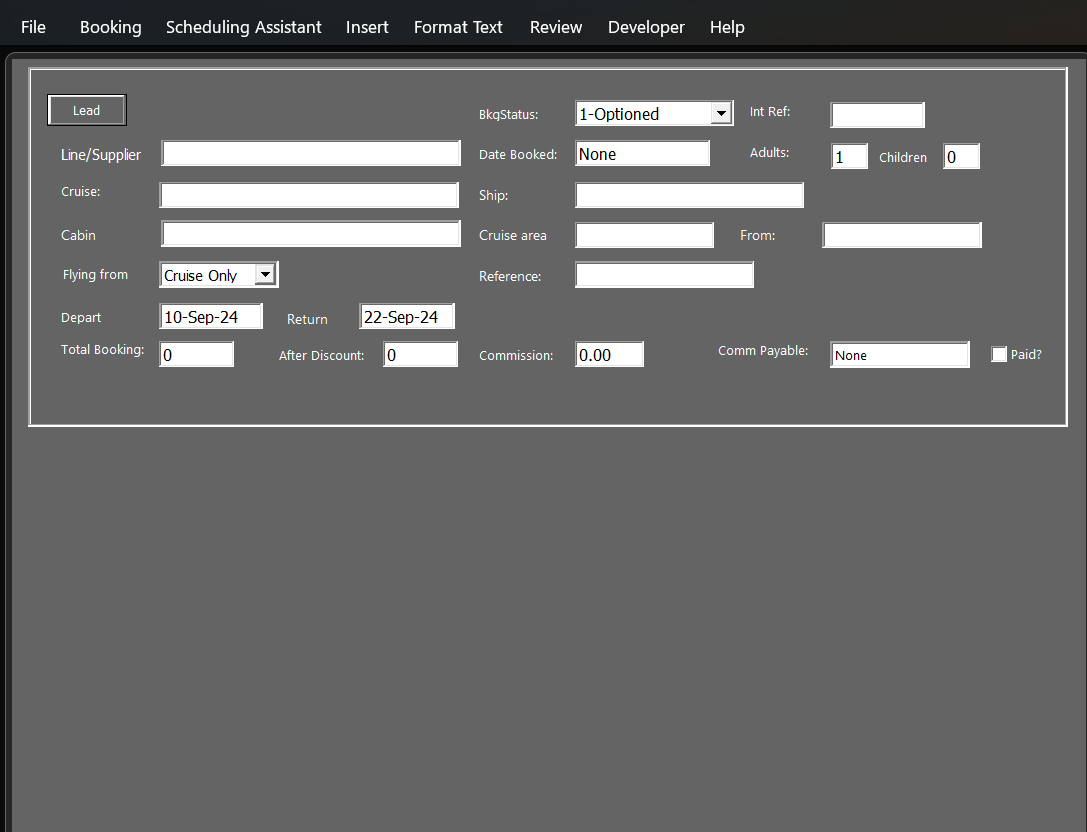
When I double click on one of those records it opens the IPM.Appointment.Booking form, but missing some fields and most of the data from the record as per the second screenshot.
If I open the form in forms designer I am unable to add back the field names as they don't appear in the field chooser.
Any help appreciated.

records in view.png


Item opened in default form.png
 
Hard to be sure, but it looks like your IPM.Appointment.Booking Custom Form needs to be removed and Published again.

Export the form
File -> Options [Advanced] [Custom Forms] [Manage Forms]
Select the Form.
[Properties]. Copy the full Message Class.
[Save as]. Move to a directory to use for the backup. Use the Message Class as the file name.

Delete the form
File -> Options [Advanced] [Custom Forms] [Manage Forms]
Select the Form.
[Delete]

Clear the Forms Cache
File -> Options [Advanced] [Custom Forms] [Manage Forms]
[Clear Cache]
Exit and Restart Outlook
Reinstall the Form
File -> Options [Advanced] [Custom Forms] [Manage Forms]
[Install]
Change the type filter to -> Form Message (*.fdm)
Move into the directory where you saved it.
Select the .fdm file
[Open]
{Stupid will show you the Properties of the installed form.} [OK]
Close your way out.

Set it as Default
Make sure it's the default for your Calendar Forlder
How to Set a Custom Form as the Default for a Folder | Slipstick Systems

For general help with Custom Forms

Designing Custom Outlook Forms | Slipstick Systems
Publishing Custom Forms in Outlook
 
Hard to be sure, but it looks like your IPM.Appointment.Booking Custom Form needs to be removed and Published again.

Export the form
File -> Options [Advanced] [Custom Forms] [Manage Forms]
Select the Form.
[Properties]. Copy the full Message Class.
[Save as]. Move to a directory to use for the backup. Use the Message Class as the file name.

Delete the form
File -> Options [Advanced] [Custom Forms] [Manage Forms]
Select the Form.
[Delete]

Clear the Forms Cache
File -> Options [Advanced] [Custom Forms] [Manage Forms]
[Clear Cache]
Exit and Restart Outlook
Reinstall the Form
File -> Options [Advanced] [Custom Forms] [Manage Forms]
[Install]
Change the type filter to -> Form Message (*.fdm)
Move into the directory where you saved it.
Select the .fdm file
[Open]
{Stupid will show you the Properties of the installed form.} [OK]
Close your way out.

Set it as Default
Make sure it's the default for your Calendar Forlder
How to Set a Custom Form as the Default for a Folder | Slipstick Systems

For general help with Custom Forms

Designing Custom Outlook Forms | Slipstick Systems
Publishing Custom Forms in Outlook
Thanks Hornblower409 for your very helpfully detailed instructions, which I have followed to the letter, however the form fields remain stubbornly blank, although when put into design mode the field names are visible in the relevant value boxes. Is there any way to 'reconstitute' the form (or create a new one) from the data in the view shown in my first image?
 
however the form fields remain stubbornly blank, although when put into design mode the field names are visible in the relevant value boxes. Is there any way to 'reconstitute' the form (or create a new one) from the data in the view shown in my first image?
The user defined form fields have somehow become disconnected from the item user defined fields?

Using the "Ship" field as an example.
Open an existing IPM.Appointment.Booking item.
Developer -> Design this form.
| All Fields |

Select from: User-defined fields in this item
You see the "Ship" field and a value? Or just the field and no value?

Select from: Booking {your custom form}
You see the "Ship" field but no value?

| Booking | {The first page of your Custom form}
Select the "Ship" field on the form and Right-click -> Properties.
| Value |
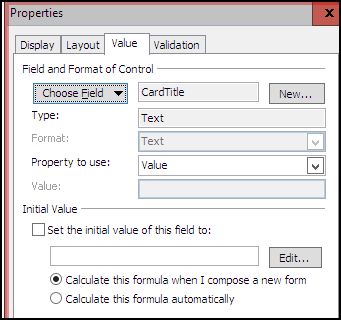
The "Field name"? {What is in the box next to [Choose Field]

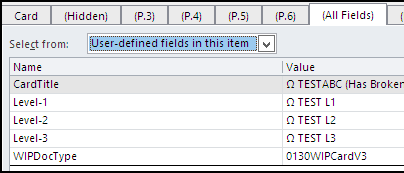
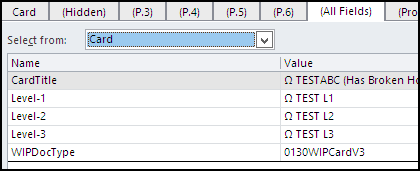
e.g. For my user defined field "CardTitle" on my Custom Form "Card"

2025-11-28 Custom Forms 01.png


2025-11-28 Custom Forms 02.png

2025-11-28 Custom Forms 03.png
 
The user defined form fields have somehow become disconnected from the item user defined fields?

Using the "Ship" field as an example.
Open an existing IPM.Appointment.Booking item.
Developer -> Design this form.
| All Fields |

Select from: User-defined fields in this item
You see the "Ship" field and a value? Or just the field and no value?

Select from: Booking {your custom form}
You see the "Ship" field but no value?

| Booking | {The first page of your Custom form}
Select the "Ship" field on the form and Right-click -> Properties.
| Value |
The "Field name"? {What is in the box next to [Choose Field]

e.g. For my user defined field "CardTitle" on my Custom Form "Card"

View attachment 4640

View attachment 4641
View attachment 4642

Thanks again, to answer your questions, selecting 'user-defined fields' in the dropdown I see one field named 'Customer' with the value 'No' (this looks like a field from an old Contact form where I had a Yes/No field against Contacts to indicate customers. Nothing to do with this form). I don't see any other custom fields e.g. Ship. However when looking at the properties of the form field, the correct field value appears e.g.. Line, Ship etc..
 
Last edited:
'user-defined fields' in the dropdown I see one field named 'Customer' ... I don't see any other custom fields e.g. Ship. However when looking at the properties of the form field, the correct field value appears e.g.. Line, Ship etc..
Do I understand correctly?

Open an existing IPM.Appointment.Booking item.
Developer -> Design this form.
| All Fields |

1 -- Select from: "User-defined fields in this item" - you do not see the "Ship" field at all.

2 -- Select from: "Booking" {your custom form} - you do see "Ship" but it has no value.

If you go to the first page of | Booking | {Your Custom form}
Select the "Ship" field on the form and Right-click -> Properties.
On the | Value | tab
3 -- You see "Ship" as the field to use for this Text Control.

4 -- Is this on one of the items from the View you posted the image of, where the Message Class = IPM.Appointment.Booking and the "Ship" column shows values? Or is this an item that does not show a value in the View "Ship" column.

(Please prefix your answers with my numbers)
 
Do I understand correctly?

Open an existing IPM.Appointment.Booking item.
Developer -> Design this form.
| All Fields |

1 -- Select from: "User-defined fields in this item" - you do not see the "Ship" field at all.

2 -- Select from: "Booking" {your custom form} - you do see "Ship" but it has no value.

If you go to the first page of | Booking | {Your Custom form}
Select the "Ship" field on the form and Right-click -> Properties.
On the | Value | tab
3 -- You see "Ship" as the field to use for this Text Control.

4 -- Is this on one of the items from the View you posted the image of, where the Message Class = IPM.Appointment.Booking and the "Ship" column shows values? Or is this an item that does not show a value in the View "Ship" column.

(Please prefix your answers with my numbers)
1. Correct
2. No, I only see the one field 'Customer' with a value of 'N'
3. Correct
4. There is a value in the field in the list view but not when the form is opened, when it is opened in design mode, or when showing 'all user defined fields in this item'. This is true for all ittems on the list.
Thanks again for your continued interest.
 
More test:

Open an existing IPM.Appointment.Booking item that shows a value for "Ship" in the View.

Developer -> Design this form.
| All Fields |
5 -- Select from: "User-defined fields in folder" - do you see the "Ship" field? Does it have a Value?

Developer -> Design this form -> Developer Menu -> Form -> View Code.
6 -- Is there embedded VBScript for this form? If so, does it reference the "Ship" field using any form of ".UserProperties."
 
Longshot, but -

From you main Outlook Menu -> Developer -> Visual Basic (Alt+F11).
8 -- Do you have VBA code defined? If so, are there lines like "Private WithEvents ...."?
 
More test:

Open an existing IPM.Appointment.Booking item that shows a value for "Ship" in the View.

Developer -> Design this form.
| All Fields |
5 -- Select from: "User-defined fields in folder" - do you see the "Ship" field? Does it have a Value?

Developer -> Design this form -> Developer Menu -> Form -> View Code.
6 -- Is there embedded VBScript for this form? If so, does it reference the "Ship" field using any form of ".UserProperties."

5. No. I do see some of the fields, but not Line, Ship Cruise, Cabin Type or Booking Status. Field values are blank except 'Balance Due1' and 'Days' neither of which are used in the view.

6. No there is no embedded VBScript
 
Last edited:
I am sorry. But I'm stumped. All I can figure is that the fields on your Custom Form have somehow (?) become disconnected from the User Properties (any fields not part of the original Standard Form) in the Items.

Background - Did you write the Custom Form? If not, where did you get it from? When did it break? (Windows or Office upgrade?)

We can try some more testing.

Go to the Folder.
Developer -> Design a form
Look in: Personal Forms Library
Select your form
[Open]

In the Form Designer
Developer -> Publish -> Publish Form as ...
Look in: Personal Forms Library
Display name: Booking_Test
Form name: Booking_Test
{"Message class:" should now read "IPM.Appointment.Booking_Test"}
[Publish]
File -> Close
Save changes? [No] {It is asking about the data, not the Form design}

Developer -> Design a form
Look in: Personal Forms Library
Select Booking_Test
[Open]

{On the form design first page}
Select the "Ship" control.
Right-click -> Delete

Developer -> Control Toolbox.
{On the toolbox dialog}
Click and drag "Text Box" {third from the left top row} . Drop it where "Ship" used to be.
Right-click -> Properties

| Display | Name: Ship
| Value | [New]
{New Column dialog}
Name: Ship
Type: Text
Format: Text
[OK]
[OK]

Developer -> Publish -> Publish Form
File -> Close
Save changes? [No] {It is asking about the data, not the Form design}

{Back in the folder}
Home -> New Items -> More Items -> Choose Form
Look in: Personal Forms Library
Select "Booking_Test"
[Open]

Put something in the "Ship" field.
Save and Close the Item.

Find it in your View.
Does is have a Ship value?

Open the item.
Does the form Ship field have the value?
 
Hello again and thanks for sticking with it so far! Yes I wrote the custom form around 12 years ago and it's been in use with minor tweaks since. I hadn't tried to use it for perhaps a month or so and when I did last week got the 'To prevent malicious code...' error. It took me a while to find the post about that error and the registry changes needed to resolve it, and when I saw the solution given by Diane to Kev99 in his Aug13 thread I applied those registry changes. The form then appeared to be the standard form, but when put into design mode all I needed to do was hide [Appointment] and make [P2] visible, which after publishing produced the version I have now, i.e. no data.

However your latest test worked, the field does now have a value :D so I guess the answer is to do the same with all fields on the form check that everything is good, then delete the 'Booking' form and remove the _test appendix from the new one?.
 
I am sorry. But I'm stumped. All I can figure is that the fields on your Custom Form have somehow (?) become disconnected from the User Properties (any fields not part of the original Standard Form) in the Items.

Background - Did you write the Custom Form? If not, where did you get it from? When did it break? (Windows or Office upgrade?)

We can try some more testing.

Go to the Folder.
Developer -> Design a form
Look in: Personal Forms Library
Select your form
[Open]

In the Form Designer
Developer -> Publish -> Publish Form as ...
Look in: Personal Forms Library
Display name: Booking_Test
Form name: Booking_Test
{"Message class:" should now read "IPM.Appointment.Booking_Test"}
[Publish]
File -> Close
Save changes? [No] {It is asking about the data, not the Form design}

Developer -> Design a form
Look in: Personal Forms Library
Select Booking_Test
[Open]

{On the form design first page}
Select the "Ship" control.
Right-click -> Delete

Developer -> Control Toolbox.
{On the toolbox dialog}
Click and drag "Text Box" {third from the left top row} . Drop it where "Ship" used to be.
Right-click -> Properties

| Display | Name: Ship
| Value | [New]
{New Column dialog}
Name: Ship
Type: Text
Format: Text
[OK]
[OK]

Developer -> Publish -> Publish Form
File -> Close
Save changes? [No] {It is asking about the data, not the Form design}

{Back in the folder}
Home -> New Items -> More Items -> Choose Form
Look in: Personal Forms Library
Select "Booking_Test"
[Open]

Put something in the "Ship" field.
Save and Close the Item.

Find it in your View.
Does is have a Ship value?

Open the item.
Does the form Ship field have the value?
Hello again and thanks for sticking with it so far! Your latest test worked, the field does now have a value!! I guess the answer is to do the same with all fields on the form check that everything is good, then delete the 'Booking' form and remove the _test appendix from the new one?

I wrote the custom form around 12 years ago and it's been in use with minor tweaks since. I hadn't tried to use it for perhaps a month or so and when I did last week got the 'To prevent malicious code...' error. It took me a while to find the post about that error and the registry changes needed to resolve it, and when I saw the solution given by Diane to Kev99 in his Aug13 thread I applied those registry changes. The form then appeared to be the standard form, but when put into design mode all I needed to do was hide [Appointment] and make [P2] visible, which after publishing produced the version I have now, i.e. no data.
 
the field does now have a value!! I guess the answer is to do the same with all fields on the form check that everything is good,
I guess. I'm as much in the dark on this as you.

You should still have a backup of the original Form from an earlier step. But make a second backup and put it someplace safe.

-- then delete the 'Booking' form and remove the _test appendix from the new one?

Or, once "...Booking_Test" is done, do Publish -> Publish As, "...Booking" and just replace the old version.

And make a Backup of the working version.
 
Last edited:
Similar threads
Thread starter Title Forum Replies Date
D Custom form now unusable Outlook VBA and Custom Forms 1
K Can we use script on a custom contact form Outlook VBA and Custom Forms 6
boblewis Technical Issue with Custom Form - Save to Drafts Not Syncing Outlook VBA and Custom Forms 1
G Apply Custom Contacts form to all existing Contacts Outlook VBA and Custom Forms 1
G Add Map It button to Custom Contacts Form in Outlook Outlook VBA and Custom Forms 1
G Outlook 2021 Add Picture to Custom Contact Form Outlook VBA and Custom Forms 2
P Can't add custom field to custom Outlook form, it always adds to the Folder instead Outlook VBA and Custom Forms 2
AndyZ Contact Custom Form Tiny Text Outlook VBA and Custom Forms 3
A How to reduce size of custom contact form? Outlook VBA and Custom Forms 3
Witzker How to get the button Karte ( map) in custom contact form Outlook VBA and Custom Forms 2
B Outlook 2019 Custom Email form - Edit default email form Outlook VBA and Custom Forms 6
J Does the .fdm contain my custom form? How to make ol use it? - ol2007 Outlook VBA and Custom Forms 4
J ol2021 custom form not displaying pics Outlook VBA and Custom Forms 37
cbufacchi Outlook 365 Populate custom Outlook Appoint form Outlook VBA and Custom Forms 2
C Create Meeting With Custom Form Outlook VBA and Custom Forms 2
J custom form not displaying pictures Outlook VBA and Custom Forms 7
I Button PDF in Outlook Contact custom form Outlook VBA and Custom Forms 1
K Font Sizing in Custom Form Regions for Contacts Outlook VBA and Custom Forms 1
K can't get custom form to update multiple contacts using VBA Outlook VBA and Custom Forms 3
H Custom Outlook Contact Form VBA Outlook VBA and Custom Forms 1
F Validation on custom task form after task acceptance Outlook VBA and Custom Forms 1
I Error saving screenshots in a custom form in outlook 2016, outlook 365 - ok in outlook 2013, outlook 2010 Outlook VBA and Custom Forms 5
M VbScript for Command Button on Contacts Custom Form Using Outlook 1
G Other users can't see P.2 with custom fields in Form Outlook VBA and Custom Forms 0
O Create a custom contact form - questions before messing things up... Outlook VBA and Custom Forms 4
L Custom Form Tutoral? Outlook VBA and Custom Forms 6
D Lost Access to Custom Form Outlook VBA and Custom Forms 4
M vCard does not have user-defined fields from my custom contact form (365) Using Outlook 1
S Outlook Custom Form Scripting only working when clicking on "Run this form" Outlook VBA and Custom Forms 2
Victor_50 Outlook 2013 Custom Contact Form starts with "E-mail 2" Outlook VBA and Custom Forms 2
C Custom Form (seperate layout pages and message reading pane) Outlook VBA and Custom Forms 0
C Reading Pane for Custom Form Outlook VBA and Custom Forms 2
N Custom Form Controls Not Visible To Recipient Outlook VBA and Custom Forms 3
Randy Redekopp How To Merge Contact Info to Email Custom Form Template Using Outlook 2
D Problem with custom form including _DocSiteControl1 Outlook VBA and Custom Forms 0
C Custom Outlook Form - Populate Information from Radio Button / Check Box Using Outlook 0
W Message class changes of a custom form changes to the default form Using Outlook 2
A Possible to hide ribbon with custom appointment form? Outlook VBA and Custom Forms 3
S Custom Form, copy user field data to message body Outlook VBA and Custom Forms 12
Andrew Quirl Custom form to route requests based on input criteria Outlook VBA and Custom Forms 1
D Using a VBA Custom Form to Send Reoccurring Email Upon Task Completion Outlook VBA and Custom Forms 4
W Setting up a custom form Outlook VBA and Custom Forms 2
A Greyed out checkbox in custom form Outlook VBA and Custom Forms 4
Z Outlook Custom Form: Adding Dropdown(Project Code) at the end of subject Outlook VBA and Custom Forms 0
Z Adding dropdown list using custom form Outlook VBA and Custom Forms 7
J autocomplete function in custom form Using Outlook 1
D Custom form with html hyperlink Outlook VBA and Custom Forms 7
D populating listbox on custom form from Access Outlook VBA and Custom Forms 7
D Custom Form Accept and Reject Command buttons Outlook VBA and Custom Forms 2
D create an html table in outlook custom form 2010 using vba in MsAccess Outlook VBA and Custom Forms 7

Similar threads

Back
Top